05. Define a Quota
Define a Quota
After navigating to the Quotas page, you should see a large list of options. We recommend selecting a specific GPU to start.
From the drop-down menus, select:
- Service =
Compute Engine API - Metric =
NVIDIA K80 GPU - Location = Whichever of these three regions is closest to you:
asia-east1,europe-west1, orus-west1
It may be easiest to first select None for all options and then search for the Metric and Location yu want.
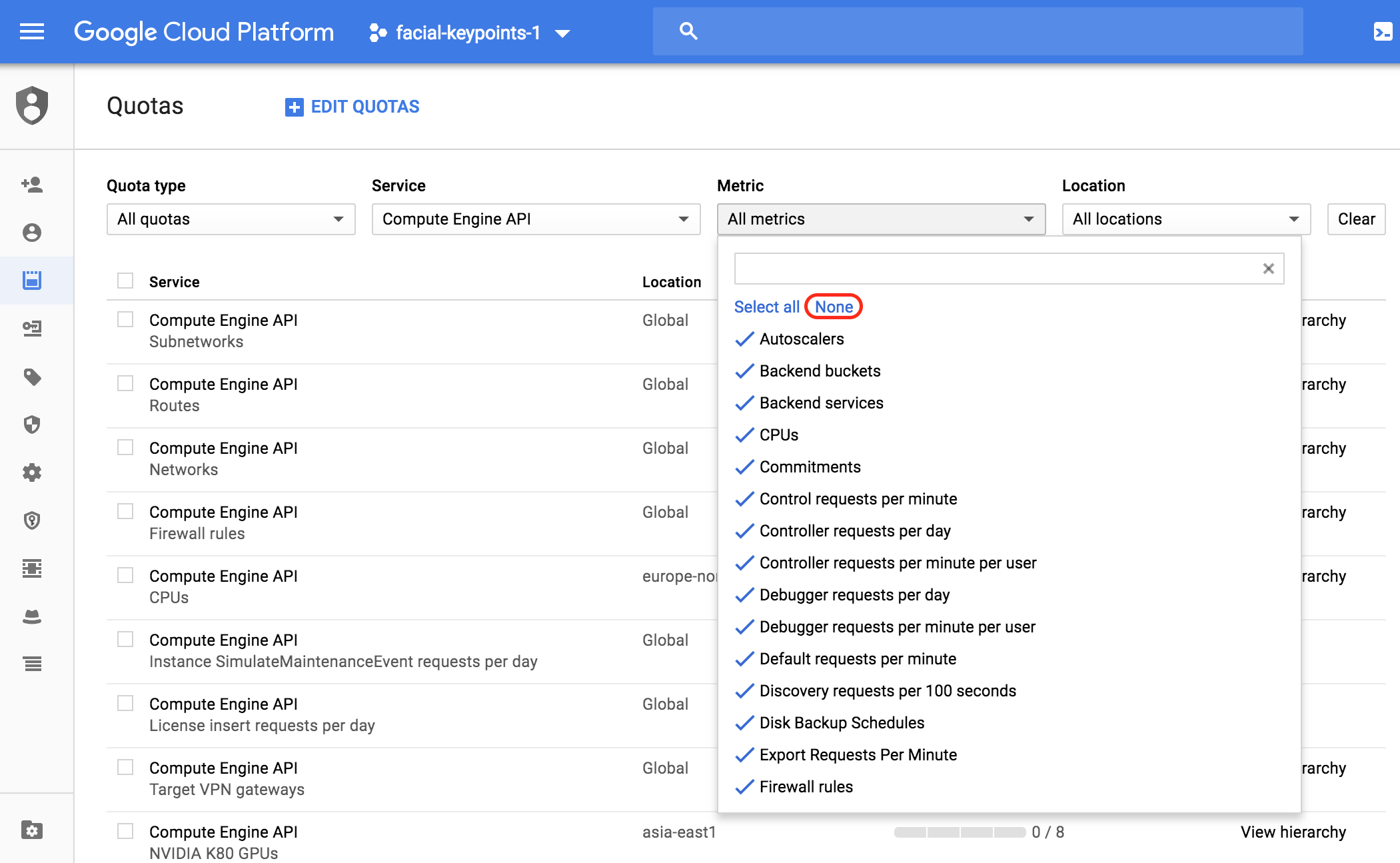
Select None to narrow your search.
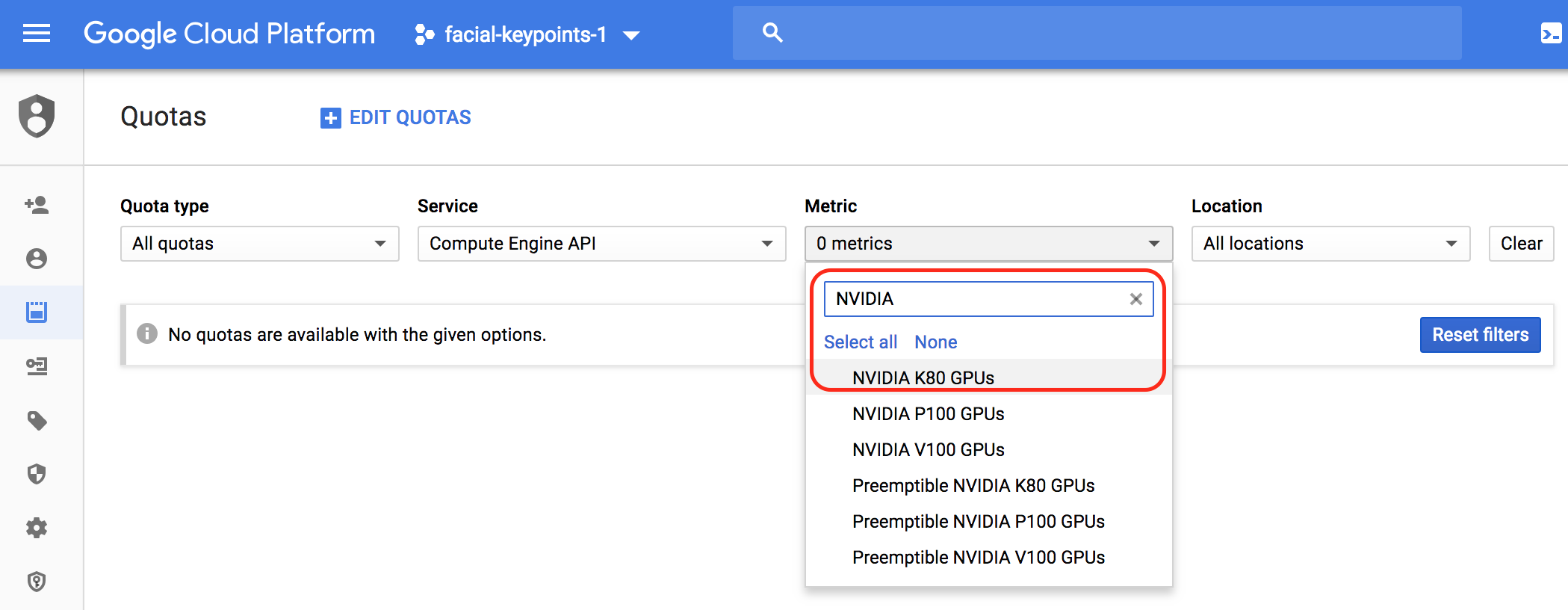
Search for the GPU you want.
Location
Location is for data collection and GPU pricing. If you are not sure of your location, it may be helpful to look at this guide.
Remember this location code as you will need to use to later to run a GPU-enabled environment. We suggest that you write it down on a piece of paper or as a note.
(Optional) Increasing your GPU Usage
It's okay to leave this instance as is, with a default of 8 GPUs. If you want to slightly increase your GPU usage, you may request access to one more by editing your quota.
Check the box next to your defined quota and click Edit Quotas (the + at the top of the screen). Enter your email, when prompted, and click Next
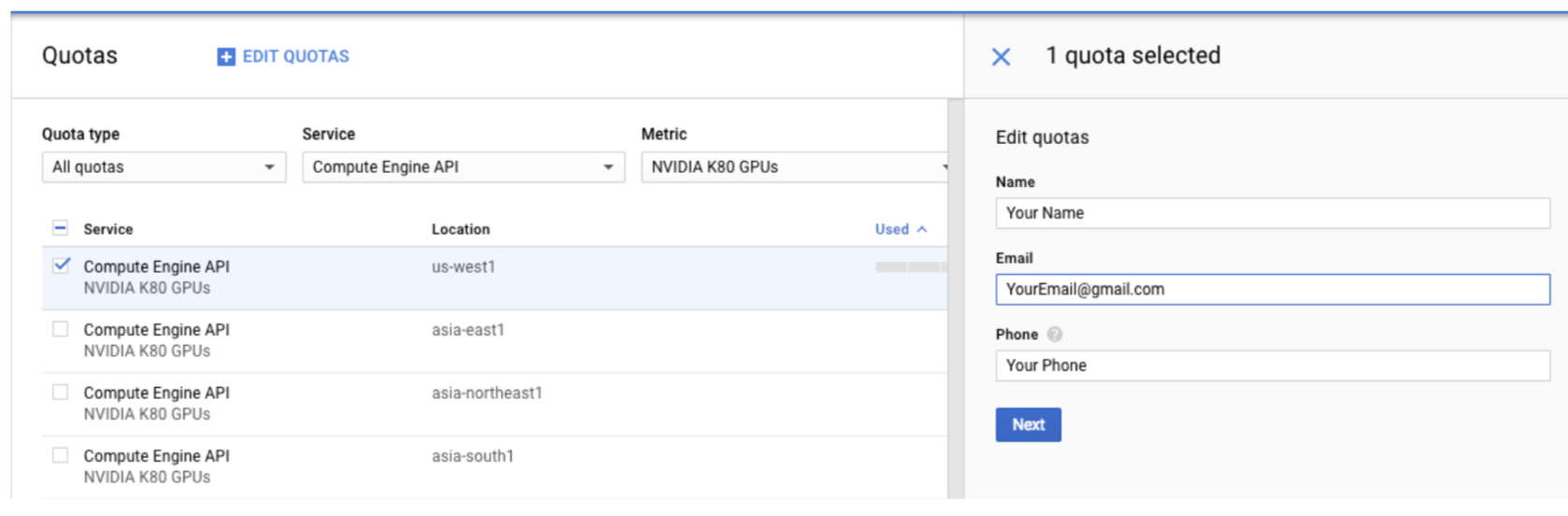
Edit a quota.
New Limit
When prompted for a New quota limit, you may find that you 1. have a default quota, if this value is equalt to or greater than 1, you can leave this as is and do not need to request any additional GPUs or 2. have a default of 0 in which case, you may ask for 1 GPU. In the second case, follow these instructions: in the Request description text box, write the following text:
I request a quota increase for one GPU. I am a student in Udacity's Computer Vision nanodegree.
(You may copy-paste from this page.)
Note: One GPU should be sufficient for the work in this course.
If you submit a request, you may see a pop-up, confirming the request.
Your quota request should be approved within 10 minutes.
You will receive notification via your gmail account that you are logged in with. The new quota will be visible on the quotas page.